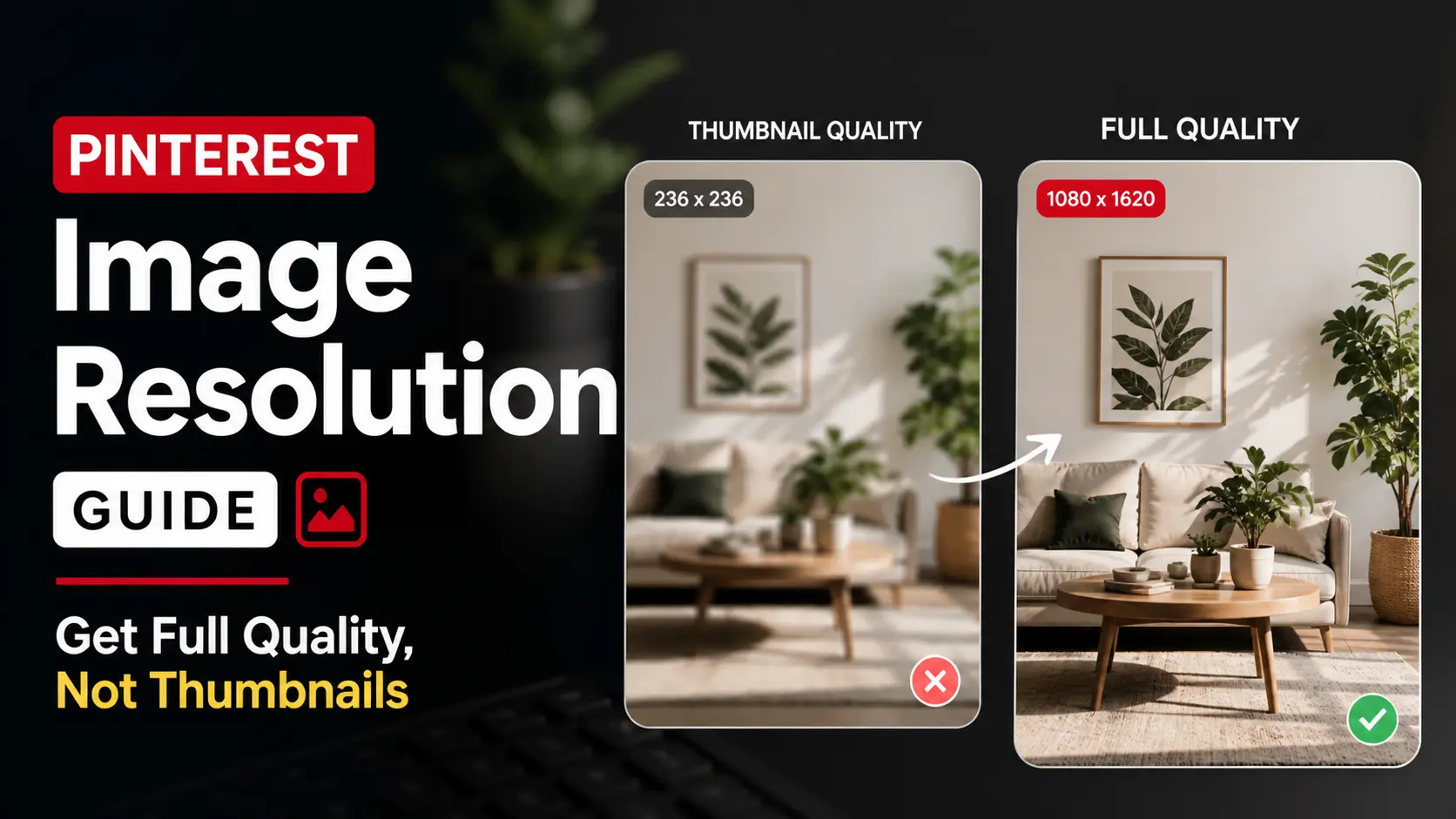
You found a beautiful interior design photo on Pinterest. You right-click and save it. You open the file later — and discover it’s a tiny, slightly blurry 474×600 pixel image. Useless for the mood board, design reference, or print project you had in mind.
This isn’t your computer’s fault. This isn’t a Pinterest bug. It’s how Pinterest delivers images, and once you understand the system, getting full-resolution images becomes simple.
This guide explains exactly why right-click save fails on Pinterest, what resolutions Pinterest actually stores, and how to consistently get the highest-quality version of any Pinterest image.
The Multi-Resolution System Pinterest Uses
When a creator uploads an image to Pinterest, the platform doesn’t store just one file. Pinterest automatically generates several versions of the same image at different resolutions, then serves whichever version best fits the user’s current view.
Here are the typical sizes Pinterest stores:
| Pinterest size segment | Pixel dimensions (approx.) | Where you see it |
|---|---|---|
60x60 | 60×60 | Tiny avatar/icon |
170x | 170×255 | Notification thumbnails |
236x | 236×354 | Feed thumbnails |
474x | 474×711 | Standard board view |
564x | 564×845 | Larger board view |
736x | 736×1104 | Pin detail view |
originals | Whatever was uploaded (often 1080×1620+) | Source resolution |
The image you see on Pinterest’s pin detail page is usually the 736x version. That’s typically what right-click save captures — not the originals version.
To get the actual high-quality image, you need to specifically request the originals URL.
How to Identify Your Saved Image’s Quality
Before assuming you have a bad version, check the dimensions:
On Mac: Right-click the file → Get Info → look at “Dimensions” On Windows: Right-click → Properties → Details tab → look at “Dimensions” On iPhone/iPad: Open in Photos → swipe up on the image → look at the metadata On Android: Long-press in Gallery → tap info icon → look at resolution
If your saved image is:
- Below 500 pixels wide: You got a thumbnail. Try again with a downloader.
- Around 736 pixels wide: Standard right-click save. Acceptable for screen viewing only.
- Above 1000 pixels wide: You got the original or close to it. This is what you want.
Why Right-Click Save Doesn’t Get the Original
Several technical reasons combine here:
Reason 1: Pinterest’s URL pattern
Pinterest image URLs follow this format: https://i.pinimg.com/SIZE/aa/bb/cc/HASH.jpg
Where SIZE is one of those segments above. When your browser displays an image, it loads whichever size Pinterest decided to serve. Right-click save grabs that version — not necessarily the original.
Reason 2: Lazy loading optimization
Pinterest loads progressively as you scroll. To save bandwidth, the platform shows lower-resolution versions until you specifically interact with a pin. By the time you right-click, you’re often saving a smaller-than-original size.
Reason 3: Responsive image serving
Modern browsers receive different image sizes depending on screen resolution and connection speed. On a phone with slow data, Pinterest might serve a 474×711 version. Right-clicking saves that smaller file, even though larger versions exist on Pinterest’s servers.
Reason 4: Browser caching
Some browsers cache the displayed version, then “save” the cached file when you right-click — even if the page later swapped in a higher-resolution version. The cached low-res file is what gets saved.
The result: right-click save is unreliable for getting Pinterest images at their best quality.
Getting the Original Resolution
Two reliable methods:
Method 1: Use a Pinterest Image Downloader (Easy)
Tools like Pin Image Downloader automatically rewrite the URL to request the /originals/ version, which gives you the highest-quality file Pinterest has stored.
Workflow:
- Copy the Pinterest pin URL
- Paste into the downloader
- Click Download
- You receive the full-resolution image
This is what most people use. The tool does the URL rewriting automatically.
Method 2: Manual URL Modification (Advanced)
If you’d rather not use a tool:
- Right-click the Pinterest image and select “Copy Image Address” (or “Open Image in New Tab” then copy the URL)
- The URL will look like:
https://i.pinimg.com/736x/ab/cd/ef/abcdef123456.jpg - Replace the size segment (in this case
736x) withoriginals - The new URL:
https://i.pinimg.com/originals/ab/cd/ef/abcdef123456.jpg - Open that URL — you should see the full-resolution image
- Right-click and save THAT version
This works most of the time, but occasionally the originals version isn’t accessible (for technical reasons on Pinterest’s side). When it fails, fall back to a downloader tool.
What “Full Resolution” Actually Means on Pinterest
Pinterest doesn’t add resolution — it stores what creators upload. So the maximum quality available varies by pin:
Common original sizes you’ll see:
- 1080×1080 — square Instagram-style uploads
- 1080×1350 — standard portrait Instagram size
- 1080×1620 — Pinterest’s recommended portrait size
- 2400×3000 — larger uploads from professional photographers
- 3000×4000 — very high resolution from camera uploads
Some creators upload at much higher resolutions (5000+ pixels). When you grab the originals, you’re getting whatever they uploaded — could be enormous.
Common resolution shortfalls:
- 474×711 — old Pinterest content from before the platform stored higher versions
- 600×900 — content saved from other platforms with size restrictions
- 736×1104 — sometimes the maximum if the original wasn’t preserved
If a pin only has a 736-pixel version (no originals available), no tool can give you higher resolution. Pinterest doesn’t have it. The only fix is finding the original creator’s source elsewhere (their website, Instagram, etc.).
Use Cases by Resolution Need
Phone Wallpaper
You need at least the screen resolution of your phone. Most modern phones are 1080×2400 or 1170×2532 (iPhone). A 736×1104 Pinterest image will look soft as a wallpaper. Use original resolution.
Print Reference
For 4×6 inch prints at 300 DPI, you need at least 1200×1800 pixels. For larger prints (8×10), 2400×3000 minimum. Pinterest originals usually meet these — thumbnails won’t.
Mood Board Display
For viewing on a typical 27-inch monitor at 1440p, images need to be 1000+ pixels wide to look sharp. Thumbnails will look pixelated.
Web Use (Personal Site)
For a 1200-pixel-wide content area, source images need 1200+ pixels. Originals are usually plenty; thumbnails are too small.
Social Media Repost (with permission)
Instagram requires 1080×1080 minimum. Pinterest 736x size is too small. Use originals.
Quick Reference / Recipe Card
For just having something on your phone to remember a recipe or DIY step, even thumbnails work. Don’t bother with originals if you’ll only view at small sizes.
Why Some Pinterest Images Are Lower Quality Than You’d Expect
Several reasons explain it:
1. Old content. Images uploaded years ago may not have been preserved at high resolution. Pinterest’s archive isn’t perfectly uniform.
2. Reposts from low-resolution sources. If a creator screenshotted an Instagram post and pinned it, you’re getting whatever resolution the screenshot captured.
3. Compression on upload. Pinterest compresses uploaded images to save storage. Some compression artifacts are unavoidable.
4. Original creator’s source. A photographer who only had a 1500-pixel master can’t give you a 3000-pixel version. The original is the ceiling.
5. Unauthorized reposts. Many Pinterest images are reposts of stolen content, often from blog screenshots or social media. The chain of copying degrades quality each step.
If a specific image looks lower quality than you’d expect, it’s probably one of these reasons. No downloader can recover detail that was never captured.
Frequently Asked Questions
Why does the saved image look fine on my phone but blurry on my monitor?
Phones have higher pixel density than monitors. A 600-pixel-wide image looks acceptable on a 6-inch phone screen but obviously soft on a 27-inch monitor. The image hasn’t changed; the display has more pixels demanding to be filled.
Can I increase the resolution of an already-saved Pinterest image?
Not really. AI upscalers (like Adobe’s Super Resolution, Topaz Photo AI) can intelligently enlarge images, but they can’t recover detail that wasn’t captured. Upscaled images look “smoother” but no sharper than the source.
Should I always download originals?
Not necessarily. Originals can be 5-20MB each. If you’ll only view on a phone, that’s overkill. For mood boards, prints, or editing, yes — get originals. For casual reference, thumbnails are fine.
What happens if a Pinterest image doesn’t have an originals version?
Some pins (especially old ones) may only have lower-resolution versions stored. Our image downloader automatically falls back to the highest available version when originals aren’t there.
Is there a way to bulk-download all images from a Pinterest board at full resolution?
Not via our tool. Pinterest’s terms of service generally prohibit bulk scraping, so most legitimate downloaders are intentionally limited to one image at a time. For your own boards, Pinterest’s official export tool may help.
Why are Pinterest images lower resolution than Instagram or Flickr?
Different platform priorities. Instagram emphasizes recent uploads from camera-quality phones. Flickr is built for photographers. Pinterest emphasizes broad discovery — they accept lower-quality content because it serves their search/inspiration use case.
Conclusion
Right-click save on Pinterest doesn’t get you the highest quality available — it usually gets a thumbnail meant for browser display. To save Pinterest images at full resolution, either modify the URL manually to request /originals/ or use a downloader tool that does this automatically.
When the image you saved looks lower quality than expected, check the dimensions before assuming the tool failed. Sometimes the source resolution itself is the limit.
Pin Image Downloader requests originals automatically and shows you the actual dimensions before downloading. If you want consistent full-resolution Pinterest images without thinking about URL syntax, our tool handles it for you.